Debugging AKS Networking Issues: A Systematic Approach (Part 1)
We spent four hours troubleshooting a production outage. Pods were throwing connection refused errors to the database. We checked pod logs, restarted deployments, verified Kubernetes Services, and even re-examined our network policies. Everything inside the cluster looked fine.
The problem was Azure Load Balancer SNAT port exhaustion. It had nothing to do with Kubernetes.
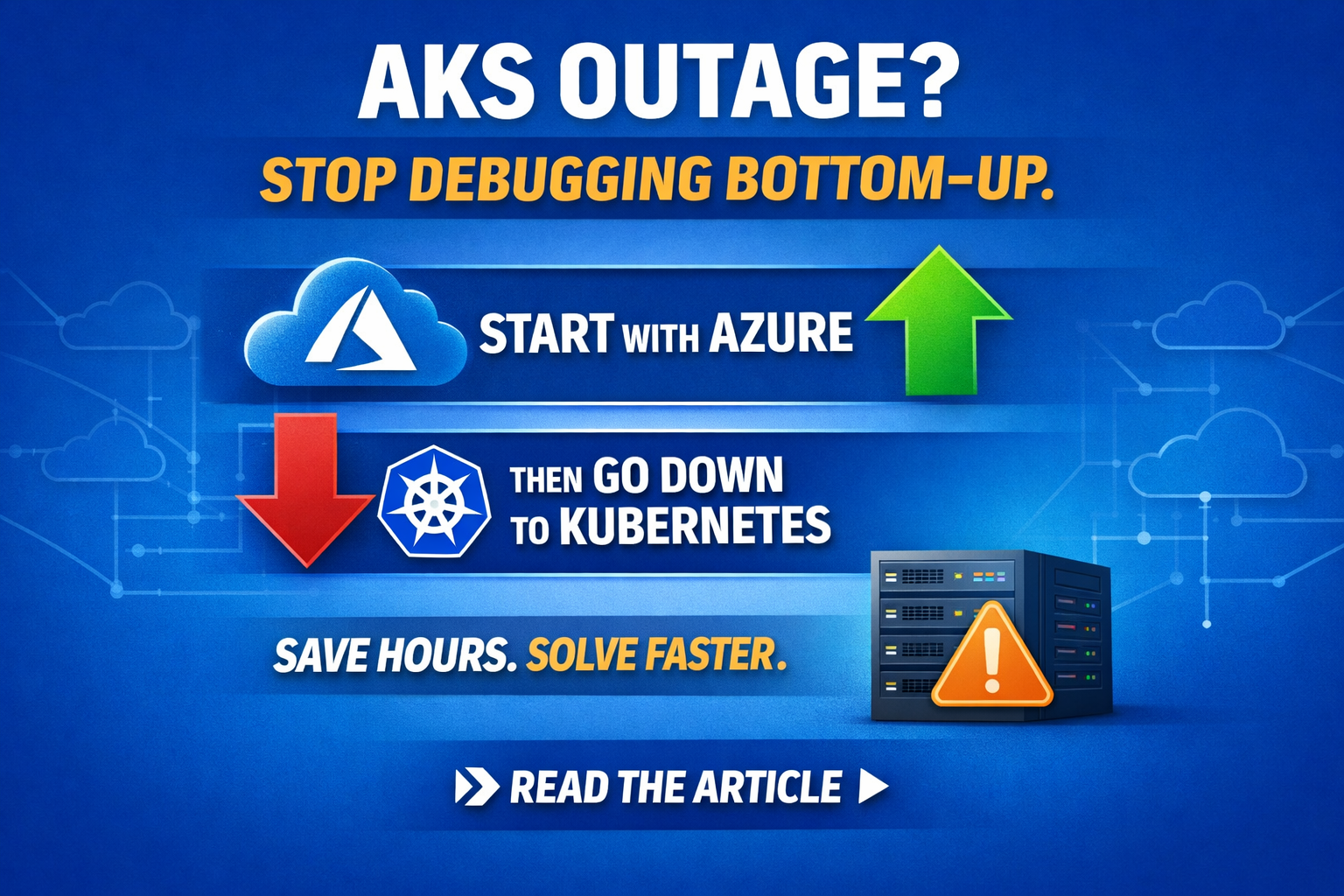
This is the most common mistake I see engineers make when debugging AKS networking issues; they start at the bottom of the stack and work up. They run kubectl exec into a pod, try a curl, see it fail, and spend hours digging through pod configs and CoreDNS logs. Meanwhile, the actual problem is sitting two layers above them, in Azure infrastructure that Kubernetes doesn't even know about.
After years of running AKS in production, I've learned to do the opposite. Start at the top and work down. Here's why, and how.
The Two Worlds of AKS Networking
Before we get into debugging, you need to understand something fundamental about AKS: its networking spans two completely different systems.
On one side, you have Kubernetes networking — Services, Endpoints, CoreDNS, Network Policies, Ingress Controllers. These are the abstractions that Kubernetes gives you.
On the other side, you have Azure networking — Virtual Networks, Subnets, Network Security Groups (NSGs), User Defined Routes (UDRs), Azure Firewall, Load Balancers, and Public IPs. These are the real infrastructure that actually moves packets.
AKS stitches these two worlds together. When you create a LoadBalancer Service in Kubernetes, Azure provisions a real Load Balancer with real public IPs. When you deploy pods with Azure CNI, each pod gets an actual IP from your Azure subnet. When you set up UDRs to route traffic through a firewall, every packet leaving every pod has to obey those rules.
The trouble is that problems in the Azure layer show up as symptoms in the Kubernetes layer. A pod that can't connect to a database might not be a pod problem at all, it could be SNAT exhaustion on the Load Balancer, an NSG rule silently dropping traffic, or a firewall that doesn't have the right FQDN rules.
If you start debugging at the pod level, you'll waste hours looking in the wrong place.
The Top-Down Debugging Framework
Here's the mental model I use. When something breaks, I work through these layers from top to bottom:
Layer 1: Azure Infrastructure — Load Balancer health, SNAT ports, Public IPs, NSG rules, UDR routing, Azure Firewall rules
Layer 2: Ingress / Gateway — Ingress controller health, ingress class configuration, TLS certificates, SSL termination
Layer 3: DNS — CoreDNS pods, Azure VNet DNS settings, custom DNS forwarding
Layer 4: Kubernetes Services — Selectors, Endpoints, Service types
Layer 5: Pods / Containers — Container ports, readiness probes, Network Policies
The reason this order works is simple: upstream problems cascade downstream. If the Load Balancer is out of SNAT ports, your pod's curl to an external API will fail. If your UDR is routing traffic into a firewall that doesn't have the right rules, your pod can't reach anything outside the cluster. In both cases, it looks like a pod problem, but it isn't.
By the way, before you start walking through these layers, you should definitely check if the pods are running and are healthy, which is at layer 5. However, before you start exec-ing into the pods and doing curl commands, confirm that the ingress and Load Balancer health is fine.
Starting at the top saves you from chasing ghosts.
In this article (Part 1), I'll walk through two real scenarios from the Azure Infrastructure layer. In Part 2, we'll move down the stack into Ingress, DNS, and TLS troubleshooting.
Scenario 1: The Four-Hour SNAT Exhaustion Outage
What happened
We had a customer-facing application running in AKS that made heavy outbound API calls to external services and maintained a high number of database connections. One day, users started seeing errors. The application was returning connection failures, specifically, connection refused when trying to reach the database.
Where we looked first (and shouldn't have)
We did what most engineers would do. We started at the pod level:
- Checked pod logs — the app was reporting connection failures.
- Restarted the pods — no change.
- Ran kubectl exec into a pod and tried to connect to the database manually — it failed.
- Checked the Kubernetes Service and Endpoints — everything looked correct.
- Verified network policies — nothing was blocking the database connection.
All of this pointed to a healthy cluster with an application that simply couldn't connect. We spent hours going in circles.
The actual problem
The root cause was SNAT port exhaustion on the Azure Load Balancer.
Here's what was happening: every outbound connection from an AKS pod that goes through the Load Balancer consumes a SNAT (Source Network Address Translation) port. Each public IP address on the Load Balancer provides roughly 64,000 SNAT ports. When your application makes a large number of concurrent outbound connections — external API calls, database connections, webhook deliveries — those ports get consumed.
When they run out, new connections fail. The application can't open new connections to anything outside the cluster, including the database. Kubernetes has no visibility into this. As far as Kubernetes is concerned, the pod is running and healthy. The readiness probe might even pass if it only checks an internal endpoint.
How we found it
Once we stopped looking at Kubernetes and started looking at Azure, the answer was obvious. In the Azure Portal, under the Load Balancer metrics, the SNAT Connection Count showed we had hit the ceiling. The Used SNAT Ports metric was maxed out.
You can also check this from the CLI:
# Check Load Balancer outbound rules and allocated ports
az network lb outbound-rule list \
  --resource-group <your-rg> \
  --lb-name <your-lb> \
  --output table

# Check the number of public IPs on the LB frontend
az network lb frontend-ip list \
  --resource-group <your-rg> \
  --lb-name <your-lb> \
  --output table
How we fixed it
The immediate fix was adding more public IP addresses to the Load Balancer. Since each public IP gives you approximately 64,000 SNAT ports, adding IPs directly increases your capacity.
But the longer-term fix was more important: we reworked the application code to reuse connections. The application was opening a new connection for every API call and every database query instead of using connection pooling. This was burning through SNAT ports far faster than necessary.
After implementing connection pooling and adding a second public IP, SNAT usage dropped dramatically and the issue never came back.
The lesson
If we had started at the Azure layer instead of the pod layer, we would have found this in 15 minutes instead of four hours. The Load Balancer metrics would have immediately shown the exhaustion. The takeaway: when pods can't make outbound connections, check SNAT ports before you check anything in Kubernetes.
Scenario 2: Azure Firewall Silently Eating Traffic
What happened
We had an application in AKS that needed to reach an internal Artifactory server to download updates. One day, the updates stopped working. The application was running, pods were healthy, but it couldn't reach Artifactory.
Where we looked first (and shouldn't have)
Again, we started at the bottom:
- Checked the pods — they were running fine.
- Restarted the pods — no change.
- Ran kubectl exec into a pod and tried curl to the Artifactory URL — it timed out.
- Checked DNS resolution inside the pod — the hostname resolved correctly.
- Looked at network policies — nothing blocking outbound traffic to that destination.
At this point, we knew the pod could resolve the DNS name but couldn't reach the server. The question was why.
The actual problem
The AKS cluster was configured with User Defined Routes (UDRs) that sent all outbound traffic through an Azure Firewall. We had recently just migrated to this traffic flow, which is a common enterprise pattern because it gives your security team visibility and control over what leaves the cluster.
The problem was that the Azure Firewall's application rules didn't include the Artifactory FQDN. The firewall was silently dropping the traffic. No reject, no ICMP unreachable, just a timeout. From inside the pod, it looked identical to a networking issue or a DNS problem.
How we found it
Once we shifted our focus from Kubernetes to Azure networking, the diagnosis was straightforward. We checked the UDR on the AKS subnet:
# Check the route table associated with the AKS subnet
az network route-table list \
  --resource-group <your-rg> \
  --output table

# See the routes — look for 0.0.0.0/0 pointing to the firewall
az network route-table route list \
  --resource-group <your-rg> \
  --route-table-name <your-route-table> \
  --output table
The default route (0.0.0.0/0) was pointing to the Azure Firewall's private IP. Then we checked the firewall logs:
# Query Azure Firewall logs for denied traffic
az monitor log-analytics query \
  --workspace <workspace-id> \
  --analytics-query "AzureDiagnostics
    | where Category == 'AzureFirewallApplicationRule'
    | where msg_s contains 'Deny'
    | where msg_s contains 'artifactory'
    | project TimeGenerated, msg_s
    | order by TimeGenerated desc
    | take 10"
There it was — the firewall was denying the connection to Artifactory. The application rule for that FQDN either didn't exist or had been removed.
How we fixed it
We added the Artifactory FQDN to the Azure Firewall's application rule collection:
az network firewall application-rule create \
  --resource-group <your-rg> \
  --firewall-name <your-firewall> \
  --collection-name "aks-app-rules" \
  --name "allow-artifactory" \
  --protocols Https=443 \
  --source-addresses "<aks-subnet-cidr>" \
  --target-fqdns "artifactory.internal.company.com"
Traffic started flowing immediately.
The lesson
When your AKS cluster uses UDRs with Azure Firewall, the firewall becomes a critical part of your networking stack. Any new external dependency your application needs, whether it’s a new API, a package registry, or an update server, it needs a corresponding firewall rule. The failure mode is insidious because the traffic just disappears. There's no error message that says "blocked by firewall." You get a generic timeout that looks like any other networking problem.
The debugging shortcut: if your cluster routes traffic through a firewall and a pod can resolve a hostname but can't connect, check the firewall logs first. Don't waste time restarting pods.
Start at the Top
Both of these scenarios have the same shape. The symptoms appeared at the pod level, and the instinct was to debug at the pod level. But the root cause was in Azure infrastructure that Kubernetes had no awareness of.
This is why the top-down approach works. Here's the quick checklist I run through before I touch kubectl:
Load Balancer — Are SNAT ports exhausted? Are health probes passing? Are there enough public IPs?
NSGs — Are any rules on the AKS subnet or node resource group blocking traffic?
UDRs / Firewall — Is traffic being routed through a firewall? Are the rules up to date?
Public IPs — Are IPs allocated and associated correctly? Standard vs. Basic SKU mismatch?
If all of that checks out, then move down to Ingress, DNS, Services, and Pods.
In Part 2, we'll move down the stack to tackle Ingress controller misconfigurations, TLS certificate issues between port 80 and 443, and DNS problems with CoreDNS and Azure VNet custom DNS. Same top-down approach, different layers.
What's the worst AKS networking issue you've debugged? I'd love to hear your war stories — drop a comment or reach out on LinkedIn.